

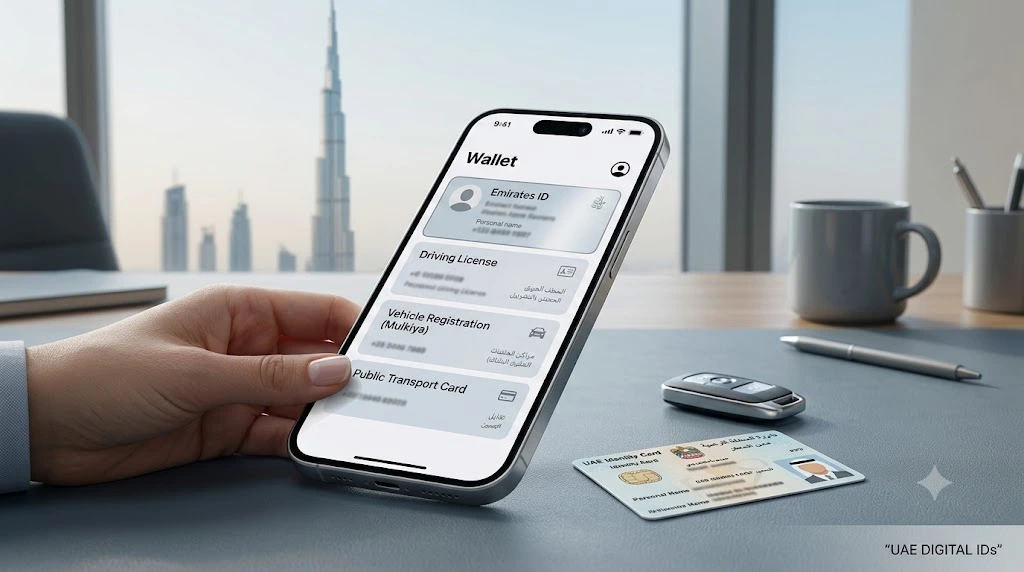
Your phone wallet probably holds your cards and a boarding pass or two. But did you know it can also hold some official UAE documents? Depending on your phone, you can add your Emirates ID, driving licence, vehicle registration card, and even a Nol card.
It’s handy if you’ve left your Emirates ID at home or need your licence while you’re out. Here’s what each wallet supports.
1. Apple Wallet: Emirates ID, Driving Licence and Mulkiya
iPhone users can add documents through official government apps.
Emirates ID: Use the UAEICP app.
- Open the UAEICP app
- Log in with your UAE Pass details
- Find your Emirates ID in the app
- Tap “Add to Apple Wallet,” if the option is available
- Follow the instructions to save it
If you want more ways to get a digital copy, we’ve covered them in our guide to four free ways to access your digital Emirates ID.
Dubai driving licence: Dubai residents can use the RTA Dubai app.
- Open the RTA Dubai app
- Log in with your UAE Pass
- Go to the documents section
- Select your driving licence
- Tap the option to add it to Apple Wallet
Vehicle registration card (Mulkiya): The same RTA Dubai app lets you add it. Pick the vehicle registration document and follow the prompts.
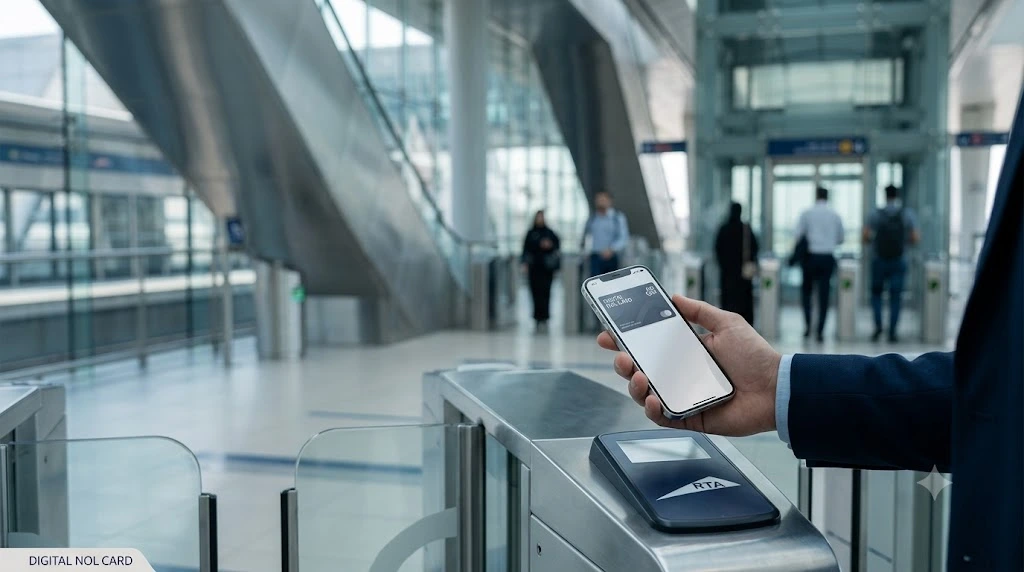
2. Samsung Wallet: Emirates ID, Driving Licence, Mulkiya and nol Card
Samsung users can add selected documents too:
- Emirates ID: through supported official government app integration
- Dubai driving licence: through the RTA Dubai app
- Dubai vehicle registration (Mulkiya): through the RTA Dubai app
- Digital nol card: through the nolPay app
For the licence or Mulkiya, open the RTA Dubai app, go to your documents and choose the Samsung Wallet option where it appears. For the nol card, open the nolPay app and follow the steps to create or add a supported digital card.
Keep in mind that availability can depend on your Samsung model, software version and app compatibility.
3. Huawei Wallet: Digital nol Card
Huawei users can add a virtual nol card through Huawei Wallet. It lets eligible users pay for trips on Dubai’s public transport using a compatible phone. To start, open Huawei Wallet, find the transport card section and follow the steps to activate it.
A Quick Summary
| Wallet | What you can add |
|---|---|
| Apple Wallet | Emirates ID, Dubai driving licence, Mulkiya |
| Samsung Wallet | Emirates ID, Dubai driving licence, Mulkiya, nol card |
| Huawei Wallet | Digital nol card |
Can Digital Documents Replace Physical Cards?
Not always. Storing a document on your phone makes it easy to reach, but that doesn’t mean every office or service will accept it. Acceptance can depend on the authority, the service provider or the type of transaction.
So before you leave your physical cards at home, check whether the place you’re visiting takes digital copies. It’s also smart to keep your government apps updated and make sure your documents are still valid.
Travelling Light on Event Nights
A phone wallet is especially useful on busy nights out, when you’re juggling tickets, cards and transport. A digital nol card, for instance, can make the Metro ride to a show much easier. If you’re planning a night out this month, there are plenty of choices. Hindi comedy fans can read about Kunal Kamra’s “Standing Up” show at Emirates Theatre, where one of the suggested routes is by Metro.
Music lovers might like Prateek Kuhad’s Full Moon Chamber world tour opening at Dubai Opera, and there’s also Shaan’s All of Me tour at Coca-Cola Arena.
With a few taps, your phone can hold documents you used to carry in your pocket. Apple users can store an Emirates ID, a driving licence, and a Mulkiya; Samsung users can add a NOL card too; and Huawei users can get a digital NOL card. Just remember that a digital copy doesn’t always replace the real thing, so check before you leave the card at home.